Restore with the app
-
Scan the pages in greyscale, at least three times the dot density (see Printing & scanning). Save them as PNG, TIFF, JPEG or BMP, or keep the PDF your scanner produces.
-
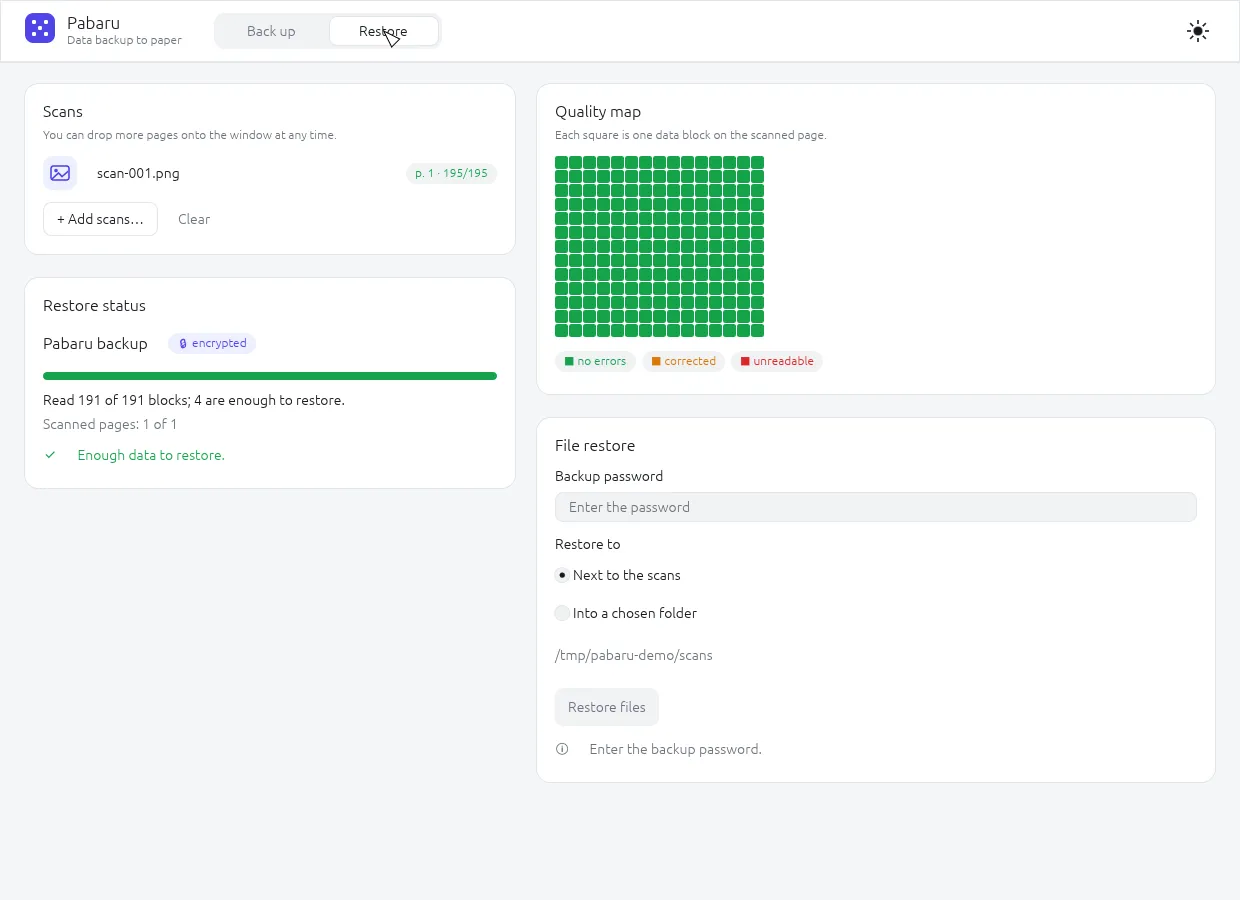
Open the Restore tab and drag the scans into the window, or click + Add scans…. Order does not matter, nor does orientation — pages may be rotated or upside down.
-
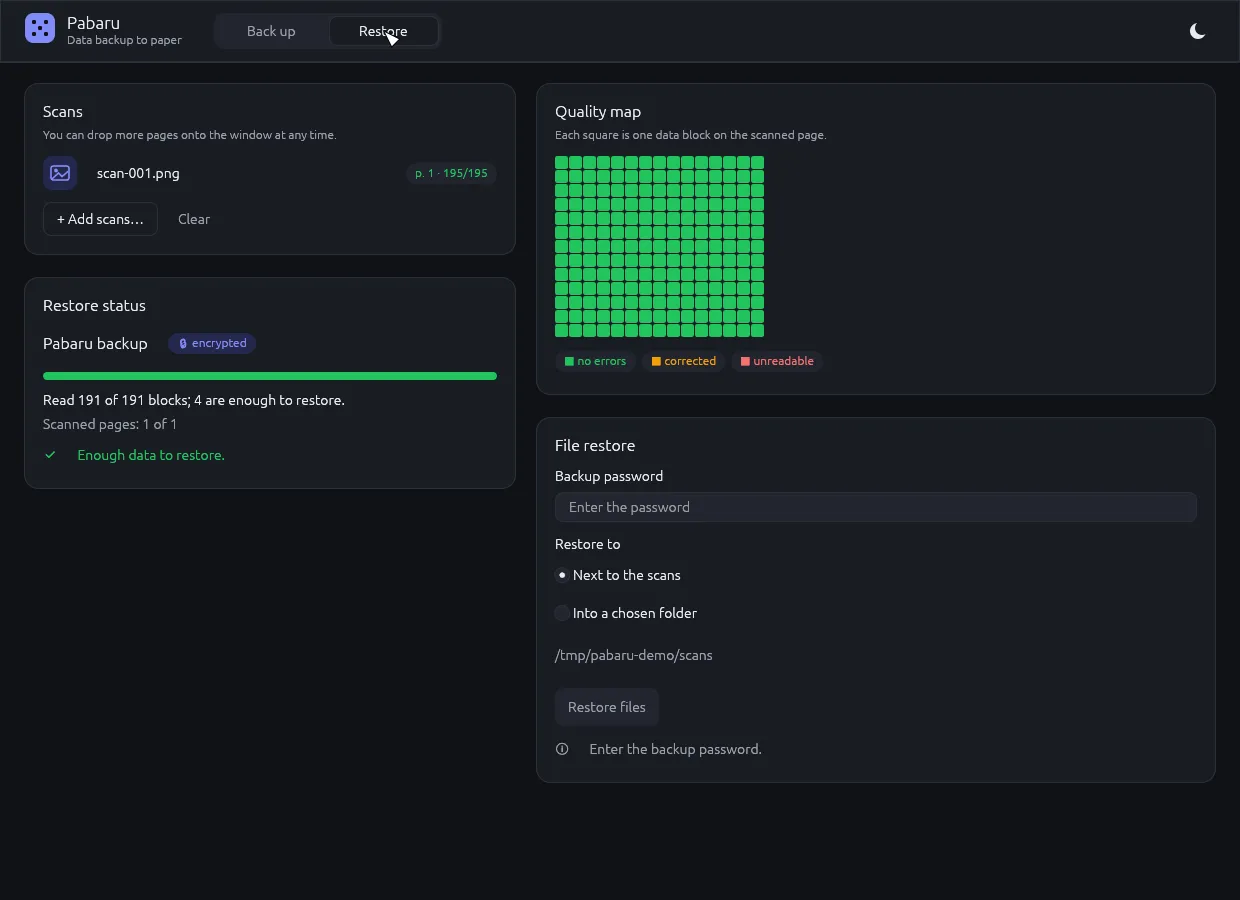
Watch the restore status. Pabaru shows how many blocks it has read and how many it needs, and a quality map for every page: blocks with no errors, corrected blocks and unreadable ones. Once it says Enough data to restore, you can stop adding scans.
-
Not enough yet? Add more scans: a rescan of a problem page, the same page scanned at a higher resolution, or pages from a second printed copy. Everything that was read is combined.
-
Enter the password if the backup is encrypted. A wrong password is detected reliably and nothing is written to disk.
-
Choose where to restore: Next to the scans (the folder the first scan came from — the default) or Into a chosen folder. Then click Restore files. Every file is checked against the BLAKE3 hash from the backup’s manifest.
Damaged pages
Section titled “Damaged pages”Crumpled pages: smooth them out as well as you can and scan them. Torn pages: scan the pieces together on the glass, or each piece separately. See Durability for what Pabaru can cope with.